| SpiritWars |
Quick Start Tutorial |
Page 2 |
|
|
The Courtyard |
|||
| When the
game begins, you will see a set of eight images in the lower left corner
of the game screen. These represent the spirits that begin the game
in your courtyard. The list box to the right of the courtyard images
displays the names of these playing pieces. Only spirits that are in your courtyard can be placed into play. During the energy phase of each turn, one new spirit will leave the dungeon of your castle and enter the courtyard. |
|||
|
The Playing Pieces |
|||
 There
are three kinds of spirits you can put in play on the playing field:
combat spirits, There
are three kinds of spirits you can put in play on the playing field:
combat spirits,
 energy
pieces and defenders. Combat spirits are denoted by three icons:
shields, horses and arrows. The arrows represent pieces that have
"ranged" attack (can attack a piece that is not adjacent
to them on the map). The horse icon denotes a "fast" piece that
can move more than one space per energy
pieces and defenders. Combat spirits are denoted by three icons:
shields, horses and arrows. The arrows represent pieces that have
"ranged" attack (can attack a piece that is not adjacent
to them on the map). The horse icon denotes a "fast" piece that
can move more than one space per turn. turn. Pieces
which produce energy are represented by the small windmills and the tower
icon represents a "defender" spirit. Pieces
which produce energy are represented by the small windmills and the tower
icon represents a "defender" spirit.Each player also has a castle icon on the map representing their respective castle. The two players' pieces are denoted by the gold and silver  color scheme. color scheme. For more information about the particular attributes and uses of these pieces, follow this link for more information about playing pieces. |
|||
|
The Activation Phase |
|||
|
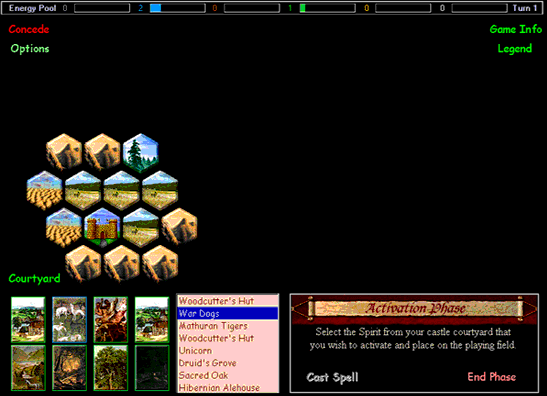
At the beginning of your first turn, the screen will look something like that shown below.
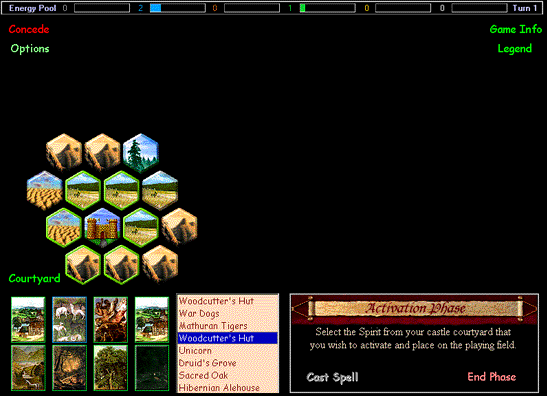
To see what type a spirit is, and to see what its powers and abilities are, click its name in the list and then right-click its name. A dialogue box will appear describing the spirit. To summon a spirit from your courtyard (activate it and put it into play), double-click its name in the list. The hexes in which you may then place it will be highlighted in green, as shown below. Click on the map the hex in which you want to place the selected spirit.
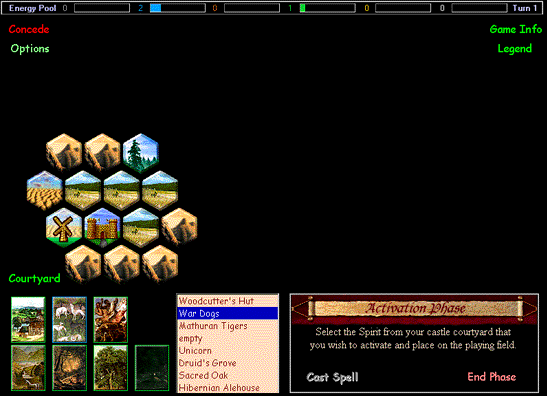
An icon representing the type of spirit will appear on the map, as shown below. Remember that Combat Spirits may only enter play in hexes immediately adjacent to your castle, while other types of spirits may enter in other places, so be careful where you place energy and defender spirits.
Since most spirits require energy to activate, you probably will only be able to activate an energy unit and perhaps one other type on your first turn. In future turns, as you accumulate more energy, you will likely be able to active several spirits at a time. After you have activated as many spirits as you can or want to, click the words "End Phase" in the lower right of the screen. |
|||